
Guardian's asset management provides a centralized view of all your Linux systems.
Features
- Real-time asset status monitoring
- Detailed system information
- Vulnerability tracking
- Security compliance status
Asset Types
Guardian supports various Linux distributions: - RHEL and derivatives - Debian-based systems - Ubuntu - AlmaLinux - CloudLinux
Adding Assets
Configuring an asset in Guardian is a straight forward process
Start by following the Quickstart
Finetuning
Once asset is added you should see it reporting to Guardian as soon as you've executed your first scan
su -s /bin/bash nobody -c "guardian-inspector --config /etc/guardian-inspector/inspector.yaml"
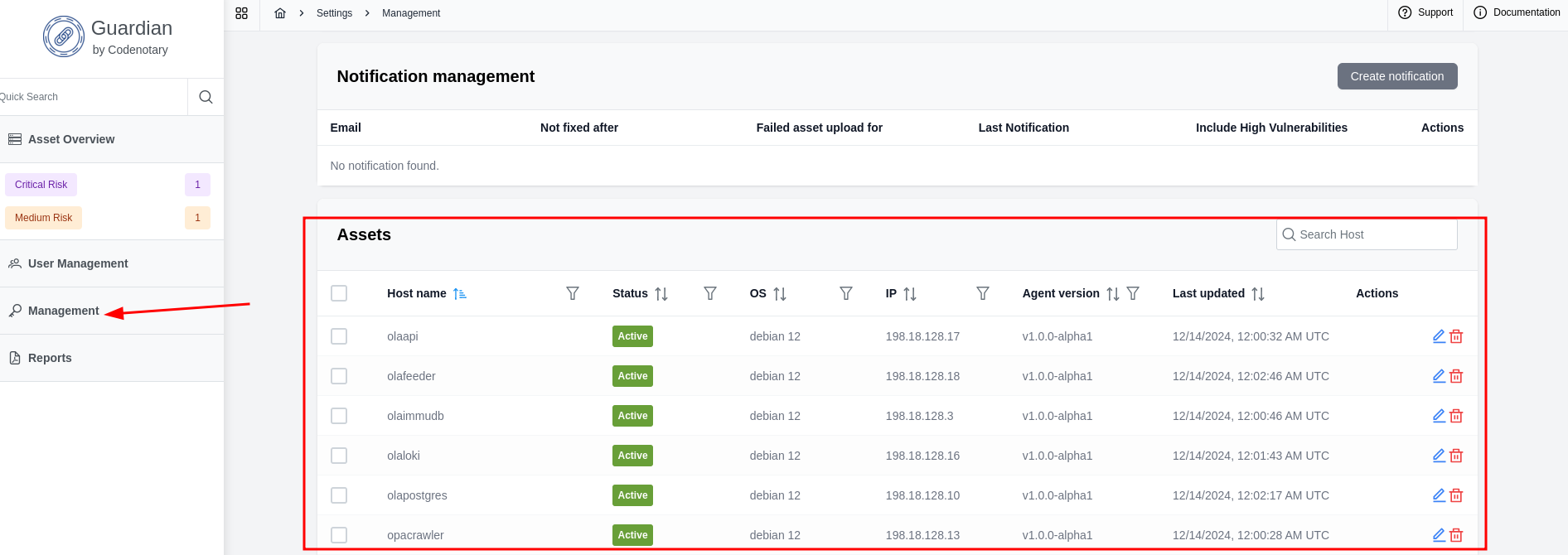
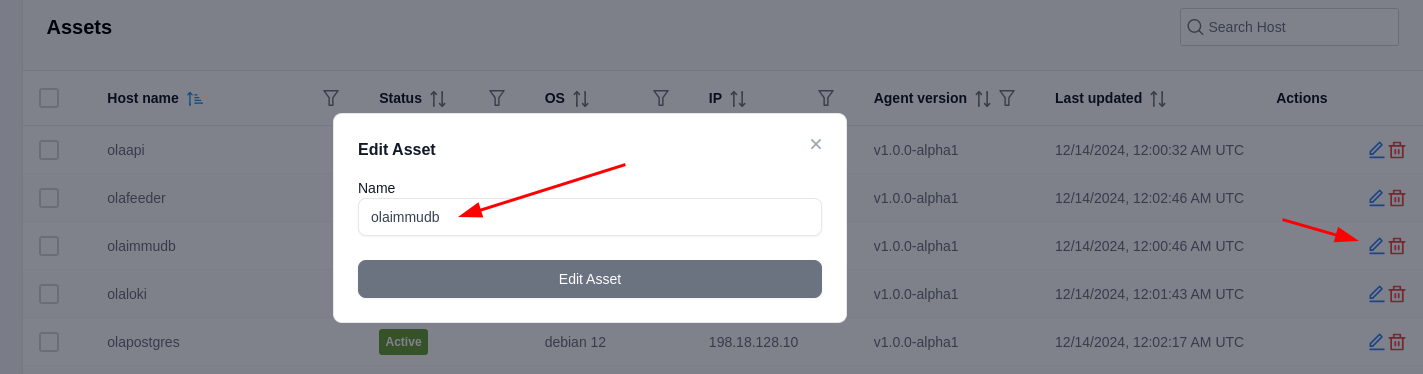
Adjusting asset's name
Next you may want to adjust the name of the asset to be more descriptive
Addings tags
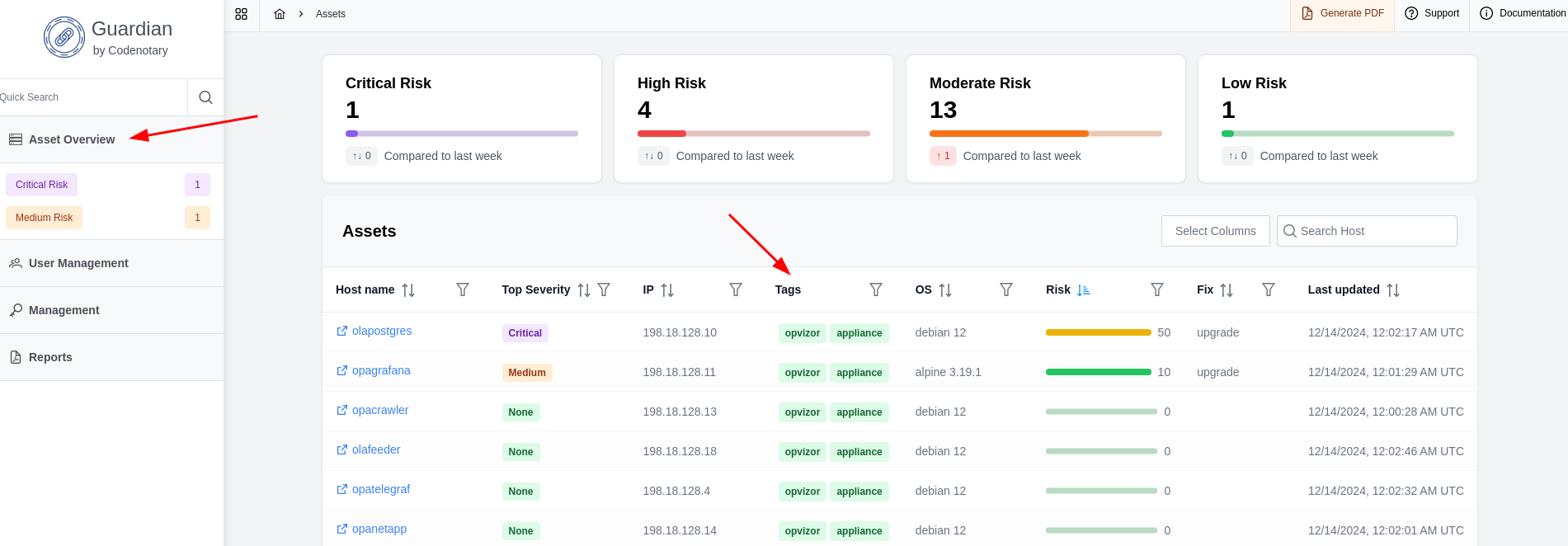
Additional feature provided by Guardian is tagging allowing you to create logical groups of your assets.
In order to add tags you may adjust the configuration file /etc/guardian-inspector/inspector.yaml
...
...
tags: dc1,proxmox,lxc
Once the tags are set they are available in UI
Monitoring Assets
Asset Overview view is the main view of your daily actions in Guardian. It represents variety of information while keeping it simple and easy to worth with.
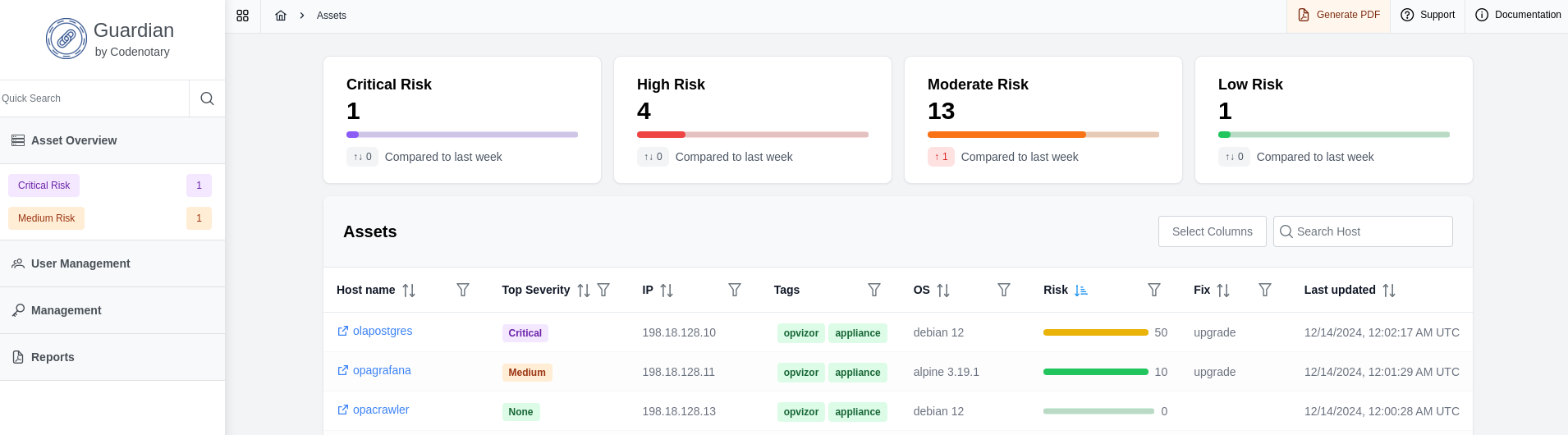
Overview
The view is organized in two sections starting with an overview counters representing the count of assets with Critical, High, Moderate and Low risk vulnerability posture.

Fleet view
Folloowing the counters you are presented with a table view of your fleet of assets configured within the organization.
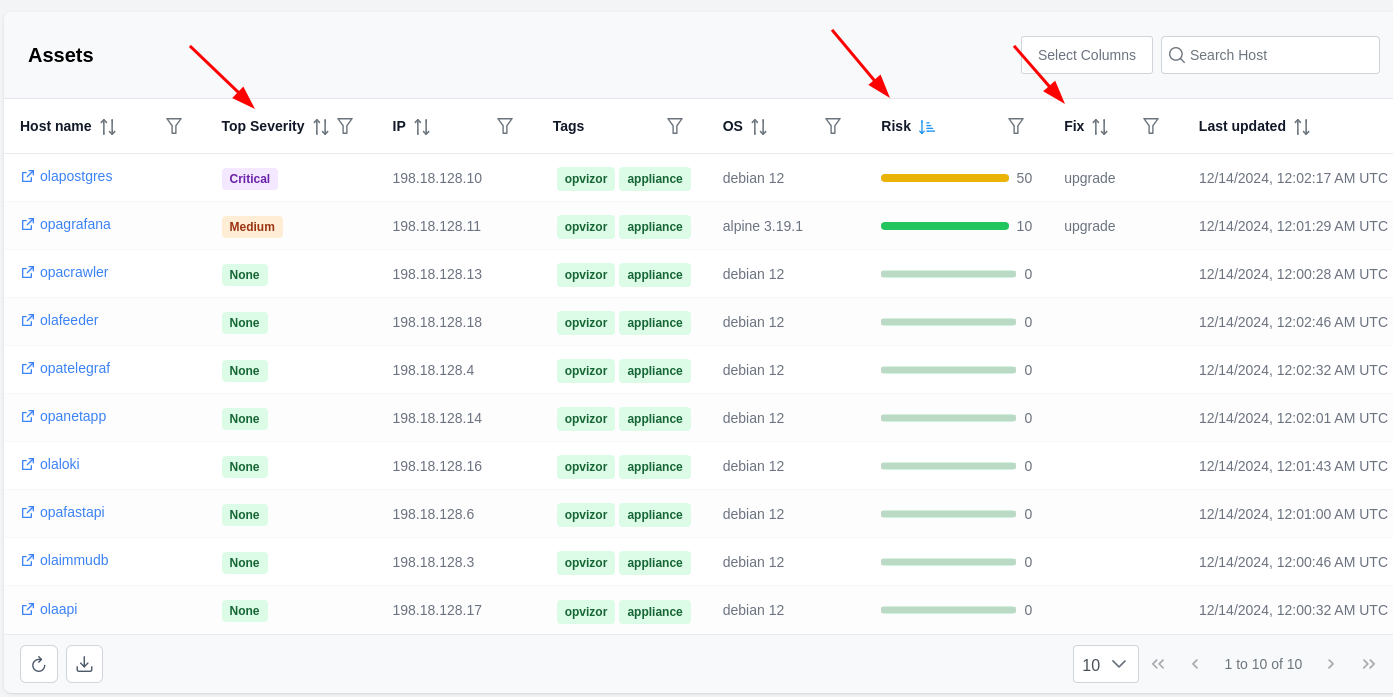
In this view you see vulnerability specific attributes along with standard attributes like Host name, IP, OS, Tags and Last updated for each of your assets.
Top Severity
This indicates the top severity of the vulnerabilities found by the scanner. Let's say if you have a couple of Moderate vulnerability and one High vulnerabvility found then Top Severity will be indicated as High.
Risk
This field represents the overall risk for the asset taking into consideration the severity and reallistic possibility of execution of the vulnerability in question.
Fix
This field indicates the type of a fix available and it can be one of the following: - upgrade: package upgrade is available for your distribution
Next
Asset Management
Asset management view is designed to provide an overview of your infrastructure fleet providing most essential asset characteristics.
The following fields are available in asset management view:

Host name
Host name field represents the name of the machine and is taken from linux /etc/hostname
Status
Status field can have severa values indicating whether the asset is reporting actively or not: - Active: this means that the asset has reported its scan results within the past 24 hours - NotSeen: This may indicate an issue with the scanner, its configuration or network restrictions from the host. Check the logfile of the scanner or execute the scanner manually and obvserve any errors in the output
OS
Operating system version in a simplified format, like debian 12 or ubuntu 24.04
IP
IPv4 address of the primary network interface
Agent version
This field represents the version of Guardian's agent running on your host.
Last updated
A timestamp in UTC representing last time when scan results were received from a host.
Actions
Action allow you to update the asset name or to decommission the asset from your fleet.
Comments
0 comments
Article is closed for comments.